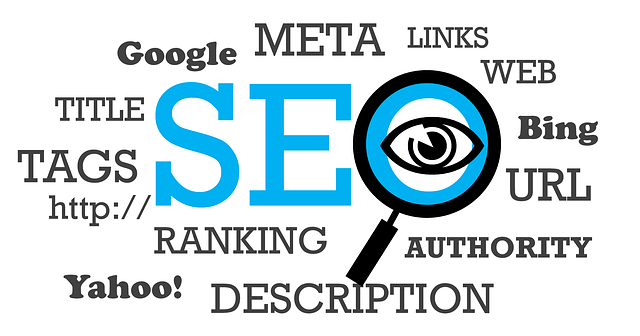
Search Engine Optimization plugin

graphic of search engine optimization terms

The third plugin I added right away was something to help me with Search Engine Optimization aka SEO.

What is Search Engine Optimization?

It’s tweaking your site so search engines will rate it highly, and list it for people who might be interested. It’s basically saying, “Hey Google! Here’s my site! Over here! Pass it on!”

Whole books have been written on SEO, but the basic concept is that you should pick good keywords – the words someone might type into a search engine. And then incorporate those keywords into the very structure of your site – the text, the titles and descriptions, headings, permalinks, and so on – so the search engine “robots” exploring the web can tell your site is all about that subject.

But why worry about SEO right away?

As I said, the best way to get a high ranking from Google and its buddies is to embed good focused keywords in the basic framework of your posts and pages. Sprinkling keywords on afterwards isn’t nearly as effective.

Also, it turns out that when you make a site more compelling and easier to navigate for a search engine robot – you also make it more compelling and easier to navigate for your human readers.

All good reasons to keep SEO in mind from the very beginning.

Learning SEO by doing

Here’s another good reason to use a SEO plugin right away. The SEO plugin I chose –  Yoast SEO – has actually helped noodge and educate me as I go along.

It provides tools, a quick tour, and a detailed online guide which I glanced at, but put aside for later – too much to take in at the moment. But the main way it educated me was by adding a set of blanks and previews at the bottom of each new post — places to fill in things like a focus keyword and a snippet editor, and previewing what searchers might see listed in Google’s search results (with a helpful links to explain why these things mattered.)

For example – what’s that “snippet editor” thing all about? Well, turns out Google ordinarily lists the first 156 characters of your post in  the search result. For this post, it would have been  “Search Engine Optimization aka SEO. What is Search Engine Optimization? It’s tweaking your site so search engines will rate it highly, and list it for people”   But if you write up a more compelling overall snippet (aka “meta description”), it lists that instead – “Search Engine Optimization (SEO) helps search engines and readers find and navigate your website easily. There are plugins to help. Get one right away.” Thanks to my SEO plugin, I’m now in the habit of including a clear meta description/snippet with each post.

The “Content Analysis” list contains a number of things which can improve your post’s SEO ranking. Just reading these is an education. I learned that 300 words is the recommended minimum for a post. 70 characters is the recommended  maximum for a page title. Outbound links are good.

Who knew? I’m only on my 14th post, and I’ve already begun taking these things into consideration as I write. A red, yellow, or green circle signals how your post does, both on this list and overall, and noodges you toward better practices.

Which SEO plugin to pick?

There are a number. Go to Plugins > Add New and search for “SEO.”  I picked Yoast SEO because one of my how-to books recommended it, and when I Googled, it repeatedly came up as the most highly recommended. I’m very happy with it. But it’s the only one I’ve tried, and they may all do a great job.




Akismet – a vital plugin

Ascreenshot for the Akismet plugin

Akismet is a plugin which protects your blog from spam. It’s apparently the best, and every book I read recommended it. Urgently. So I found and activated it right away.

Not that I have any spammy comments to worry about. Nobody even knows I’m here. At the moment, this blog is just me, talking to myself, in a big empty echoing space.

But the books say there are nasty spambots roaming the internet, ready to dump thousands of spammy comments on any unprotected blog they come across.  So I figured, better safe than sorry, and I put up safeguards first thing.

There are a few steps to activating Akismet — for details, check your how-to book, web host, WordPress plugin directory  or the Akismet home page. For personal websites (like our author websites) you can get Akismet for free, or choose to pay $0 to $120 for it. I chose to pay a small amount. I may be frugal, but I also try to be fair, and if the writers and developers of this plugin are providing a vital service, then I figure they deserve some payback. As writers, we know the value of intellectual property.

Follow-up, 10 months later:

I made my first post in late October. Akismet caught 37 (!) spam comments over the next 2 months, despite the fact that I did nothing, nada, zip to bring this website to the attention of search engines.

Since then, it’s caught 4 or 5 each month. And again, the website and blog were inactive much of that time, and totally unadvertised.

I did check my spam folder each day, and the flagged comments were indeed spam. Although some were cleverly disguised as compliments about my post — “I am glad to be one of many visitants on this great site (:, appreciate it for putting up..” Aw, shucks…

Bottom line — based on my experience, I definitely advise getting Akismet immediately.

I do think it’s good to check the spam folder daily, to make sure Akismet hasn’t intercepted any legitimate comments. It never has for me — but of course, I haven’t had any legitimate comments yet… When I do, I’ll report back whether false positives are a problem.

Jetpack – a basic plugin

screenshot for the Jetpack plugin

One of the great things about WordPress is all the plugins — small programs designed to work seamlessly with WordPress software, to provide all kinds of extra functions. You pick and choose the ones you want.

But there are a few fundamental plugins which you probably want from the get-go. The first of these is Jetpack. It provides a whole raft of features which come built-in with the free WordPress.com blog version — but which aren’t included in your self-hosted version. Useful features which help with security, appearance, site management,  keeping track of site statistics, social networking, and so on.

The only possible drawback I’ve seen mentioned is a claim that it might slow your site down. So I Googled “does jetpack slow down your site” and browsed through the results. And the answer seems to be a definite “It depends.” For author websites like ours, which are relatively small, uncomplicated, and quick to load, Jetpack seems like a great deal. The how-to books I read all recommended it. And did I mention it’s free?

So I loaded and activated it right off the bat, and have been working with it ever since.  So far, so good. If that changes, I’ll come back and edit this post. And if you have any wisdom or experiences about Jetpack, would you mind sharing them in a comment?